Sound that moves your visuals
Shipped Sunday, 6 Sep 2026 at 11:00 CEST
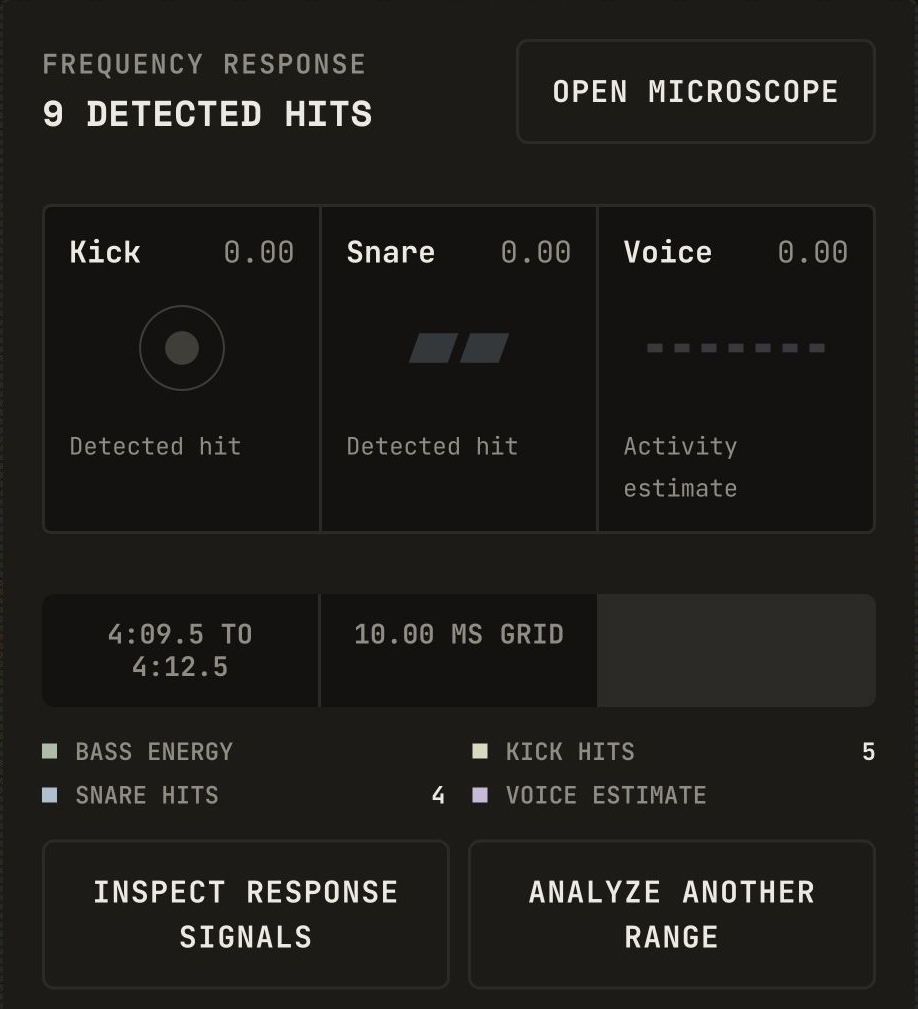
Start with lightweight Frequency response to drive movement from kicks, snares, and estimated voice activity. Model analysis is available when you choose it. This release also makes audio ranges easier to read in light mode.
Frequency response
Turn detected kicks and snares into movement, and let estimated voice activity drive a flowing response. Start with Frequency response, then choose model analysis only if you want to try it. Models are extremely heavy, can make your computer very slow, and do not guarantee better accuracy.
- 01Open Sound and choose a track or the sound from your video.
- 02Choose the Part you want to use. The timeline follows its duration. Then open the analysis setup.
- 03Keep Frequency response selected and click Analyze frequencies.
- 04Choose Kick, Snare, Voice, or All three under Start from, then play your timeline.
Reliable audio ranges and saved results
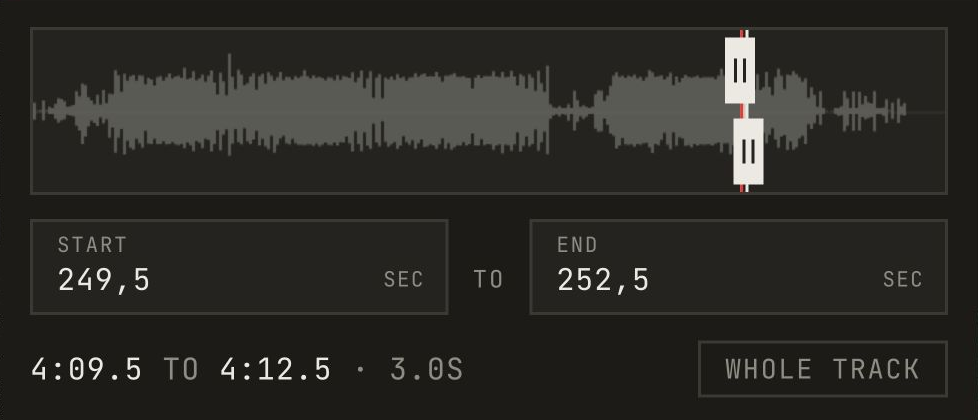
Choose the audio range you want, and the timeline adjusts to its duration. Slide the range to try another part without losing your saved results. One saved analysis stays selected, and you can switch between parts. Compact handles and the waveform follow light and dark mode.
- 01Open Sound and load your audio.
- 02Under Part, drag either edge to trim the range, or enter Start and End times. The timeline duration updates automatically.
- 03Analyze the range to show its detected beats. Slide the selection to choose another part, then analyze again.
- 04Choose a saved analysis to restore its range, duration, and signals.